Why searching Arabic and Urdu PDFs fails, and how to fix it
Why a word you can see on the page won’t come up in search in many Arabic and Urdu PDFs, how to tell which problem you have, and what to use instead.
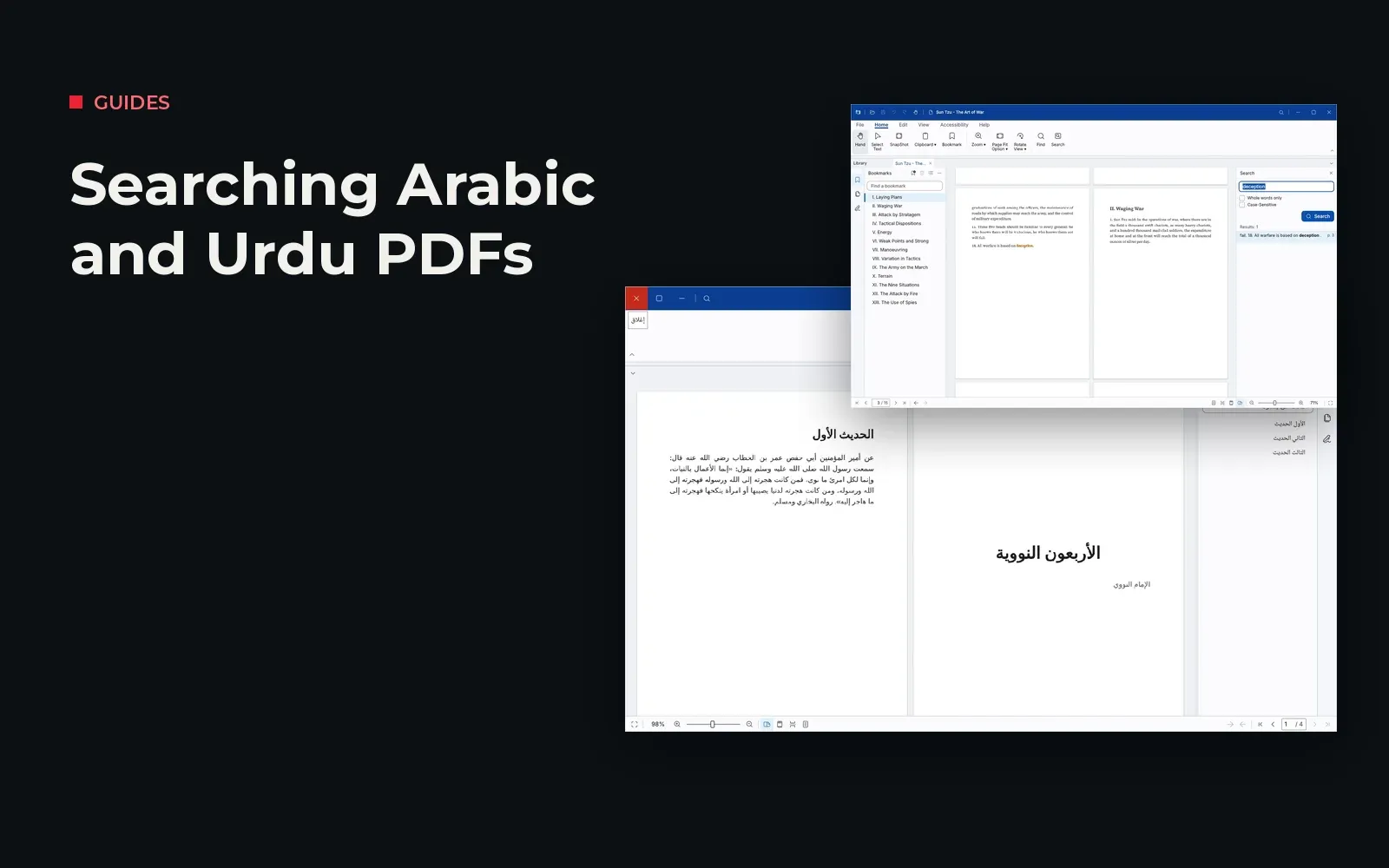
You can see the word on the page. You type it into the search box. Nothing. Anyone who reads Arabic or Urdu books as PDFs has met this, and most people assume they mistyped. Usually they didn’t. The problem is in the file, or in how the reader searches it.
This guide explains the four usual causes, how to tell which one you are dealing with, and what to do about each.
First, a one-minute test
Select a line of text in the PDF, copy it, and paste it into Notepad or any plain text editor. What you get back tells you most of what you need to know:
| What you see after pasting | What it means |
|---|---|
| Nothing can be selected | The page is a scanned image. There is no text to search. |
| The words appear, readable and in the right order | The text is fine. The search tool is the problem. |
| Letters appear separated, reversed or as strange symbols | The PDF’s text layer is damaged or uses old encodings. |
| Words appear, but with vowel marks or unusual letters | Search fails because of spelling variants, not the file. |
Cause 1: vowel marks (harakat)
Many Arabic books are printed fully vowelled. In the file, a word such as الْعِلْمِ is stored with its vowel marks, while you type العلم. To a simple search, these are different strings, so nothing matches.
Fix: use a reader that ignores vowel marks when searching. Good Arabic search treats the two as the same word and still shows you the vowelled original.
Cause 2: letter variants
Arabic and Urdu have letters that look nearly the same but are stored differently:
- Alef forms: ا أ إ آ are often typed interchangeably.
- Taa marbuta and haa: ة and ه at the end of a word.
- Alef maqsura and yaa: ى and ي.
- Arabic and Urdu letters: Arabic ك and ي are separate characters from Urdu ک and ی, even though they look alike. A book typed with one will not match a search typed with the other.
- Tatweel, the stretching stroke used in headings (العـــلم), is a character of its own.
Fix: a search that “normalises” these, treating the variants as equal while leaving the stored text untouched. If your reader doesn’t, try searching a shorter part of the word that avoids the variable letter.
Cause 3: a damaged or old text layer
Some PDFs, often older ones made with early Arabic software, store each letter in its joined “presentation form”, or store glyphs without telling the reader which letters they are. The page looks perfect, but the text behind it is unusable. Copying gives you broken or reversed letters.
Fix: no reader can search text that isn’t really there. Find a newer edition of the file if one exists, or run the pages through OCR (text recognition) to rebuild the text layer.
Cause 4: scanned pages
Many classical works circulate as scans of printed editions. A scan is a photograph of the page, so there is nothing to search until OCR has been run on it.
Fix: OCR. Results for Arabic and especially Urdu Nastaliq vary a lot by tool and by print quality, so check a few pages before relying on the results for research.
Where Atlas Reader fits
We build Atlas Reader, a free PDF reader and research library for Windows, partly because of this problem. Its search is designed for Arabic and Urdu: it finds a word with or without vowel marks, and treats alef forms, taa marbuta and tatweel as the same, without changing the book itself. The whole interface also works in English, Arabic and Urdu, with right-to-left layouts and Nastaliq for Urdu.
To be clear about where it stands: Atlas Reader is in public beta. Beta 2 has the library and the reader, with search. Bookmark editing, notes and saving are still being built, and no release date has been set for version 2.0. It runs on Windows, needs no account, and keeps everything on your computer. The code is open on GitHub.
It cannot fix causes 3 and 4. A scan with no text, or a broken text layer, needs OCR first, in any reader.
A short checklist
- Copy a line and paste it into Notepad to see what the file really contains.
- If nothing copies, the page needs OCR.
- If the text is broken, look for a better edition or OCR it.
- If the text is fine, search without vowel marks, try a shorter part of the word, or use a reader that understands Arabic and Urdu.
- For Urdu books, remember that Arabic and Urdu versions of ک and ی are different characters.
If your problem is finding the right book rather than the right word, see how to organise a large PDF library on Windows.