How to organise a large PDF library on Windows without losing books
A simple folder and naming system for hundreds or thousands of PDFs, how to deal with duplicates and drives, and which free tools help with which job.
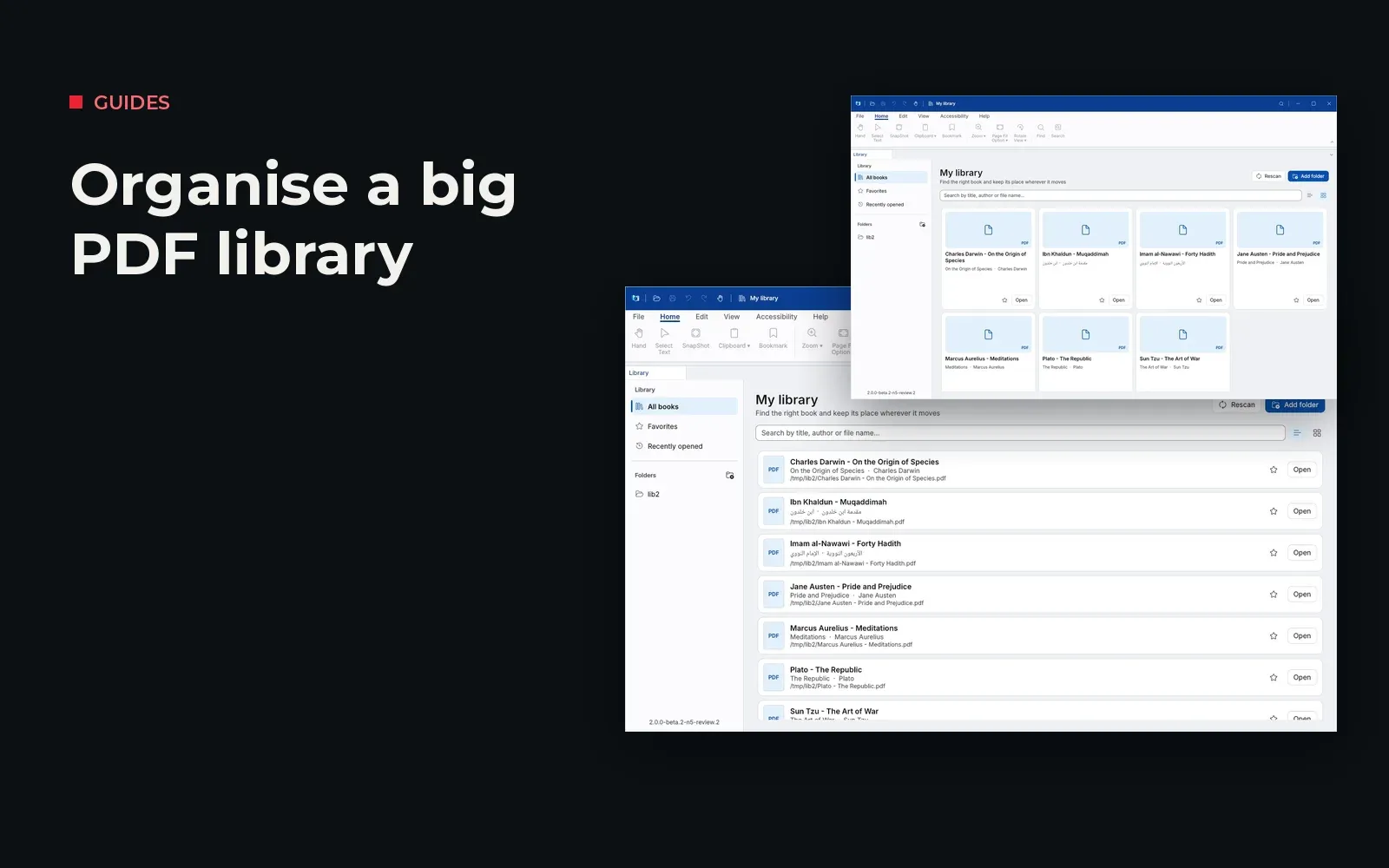
A few hundred PDFs are easy to manage. A few thousand, spread across Downloads, an old laptop and two external drives, are not. You know you have the book. You just can’t find it, or you find three copies and aren’t sure which one has your notes.
This guide sets out a plain system that works for students, researchers and small libraries, and explains which free tools help with which part.
1. One home for every book
Pick a single top-level folder, for example D:\Library. Every book goes somewhere inside it. Nothing lives in Downloads or on the desktop for longer than a day.
If your books are on more than one drive, give each drive the same top-level folder name so the structure is predictable wherever you look.
2. A few broad subject folders
Resist the urge to build a deep tree. Five to fifteen broad folders work better than fifty narrow ones, because you will always know where a book should go. For example:
Library
├── Quran and Tafsir
├── Hadith
├── Fiqh
├── Arabic language
├── History
└── Reference
If a book fits two folders, choose one and move on. Search will find it either way.
3. One naming pattern
The single most useful habit is a consistent file name. A simple pattern:
Author - Title - Edition or Volume.pdfFor multi-volume works, put the volume number with a leading zero (Vol 01, Vol 02) so the files sort in order. Write names in the language you search in most. If you search in Arabic, an Arabic file name is fine; Windows handles it.
4. Deal with duplicates early
Duplicates are how notes get lost: you highlight one copy, then open the other. Once a month, sort a folder by size and look for files with identical sizes and similar names. Keep the best copy, and delete or archive the rest.
5. External drives and backups
External drives are where books vanish: the drive letter changes, or the drive isn’t plugged in when you search. Keep the same folder structure on every drive, label the drives, and keep at least one backup of your main library on a different disk or cloud storage you trust.
6. Which tool for which job
No single tool does everything well. These are free and widely used:
| Tool | Best for | Keep in mind |
|---|---|---|
| Windows File Explorer search | Finding a file by name | Searching inside PDFs depends on Windows indexing being set up |
| Calibre | EPUB and other ebook formats, metadata, converting | Built around ebooks; it copies files into its own library folder |
| Zotero | Citations and references for academic writing | Designed for papers and sources, not for reading whole books |
| SumatraPDF | A very light, fast PDF reader | No library or collection features |
| Atlas Reader | A PDF library across folders and drives, with a reader | Public beta; bookmark editing and notes are still being built |
Atlas Reader is ours, so we will say plainly what it does. It reads the folders you choose, including on external drives, and builds one searchable library of your PDFs without moving the files. It shows the title, author and file location for every book, has Favourites and Recents, and opens books in a reading workspace with tabs, search, outline and thumbnails. It is designed to keep track of books when you move them or unplug a drive. The interface works in English, Arabic and Urdu.
It is in public beta: the library and reader work today, while bookmark editing, notes and saving are still in development. It is free, runs on Windows, needs no account and keeps everything on your computer. The code is open on GitHub.
A system you will keep
- One top-level library folder, the same on every drive.
- Five to fifteen broad subject folders.
- One naming pattern: Author - Title - Volume.
- A monthly five-minute duplicate check.
- A backup on a second disk.
- A tool that shows your whole library in one place.
If you only do the first three, finding a book will already take seconds instead of minutes.
Searching inside Arabic or Urdu books is a separate problem. We cover it in why searching Arabic and Urdu PDFs fails.